
Information sometimes helps. COV-ID-19 information is currently everywhere, so i thought, why not on the PS Prompt ? This is a guide, on how to get current COV-ID-19 Data everytime you open a new PowerShell host.
Step 1 – API Key to access RapidApi
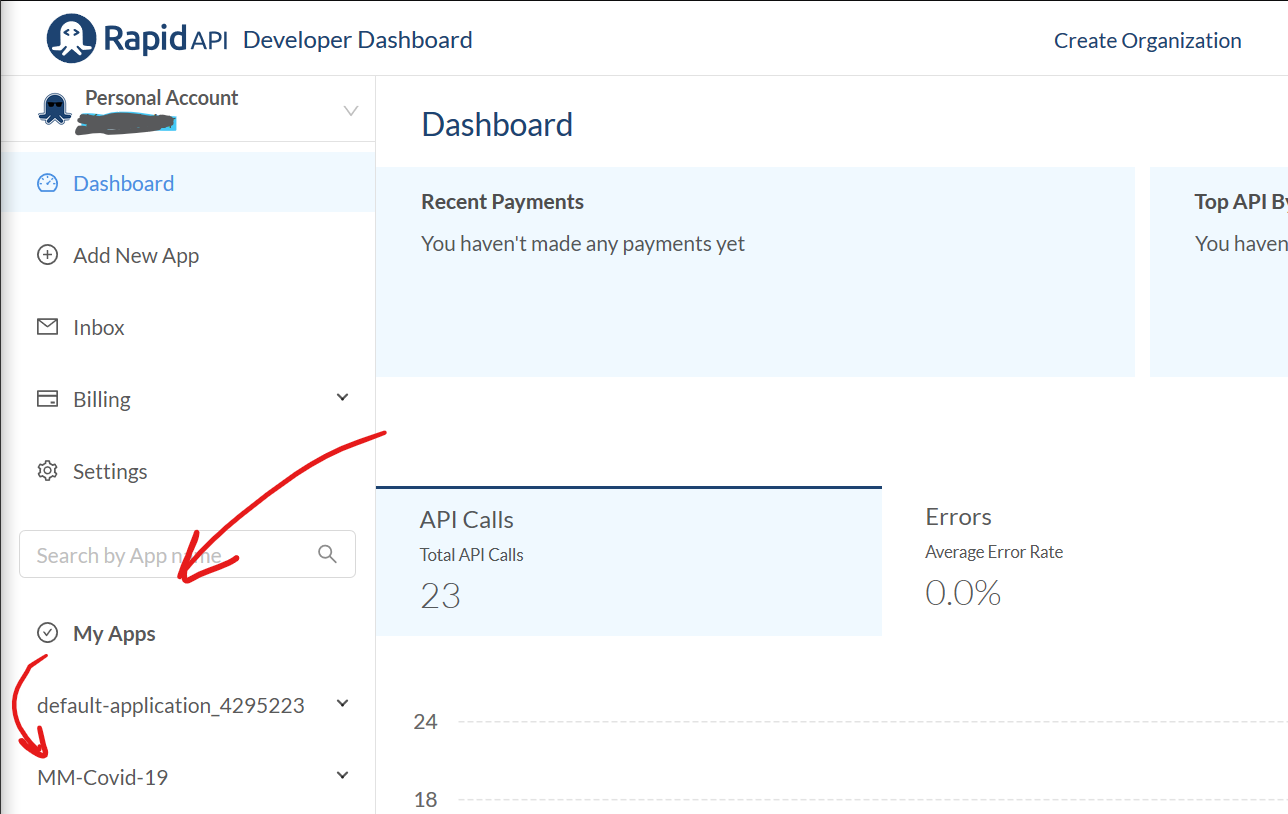
Register for an API Key at https://rapidapi.com. Therefor create an account, go to your personal dashboard and create a new App in „MyApps“.
Then go to the Coronavirus-Moitor of RapidAPI https://rapidapi.com/astsiatsko/api/coronavirus-monitor and test your API Key with the latest_stat_by_country query as in the screenshot below.
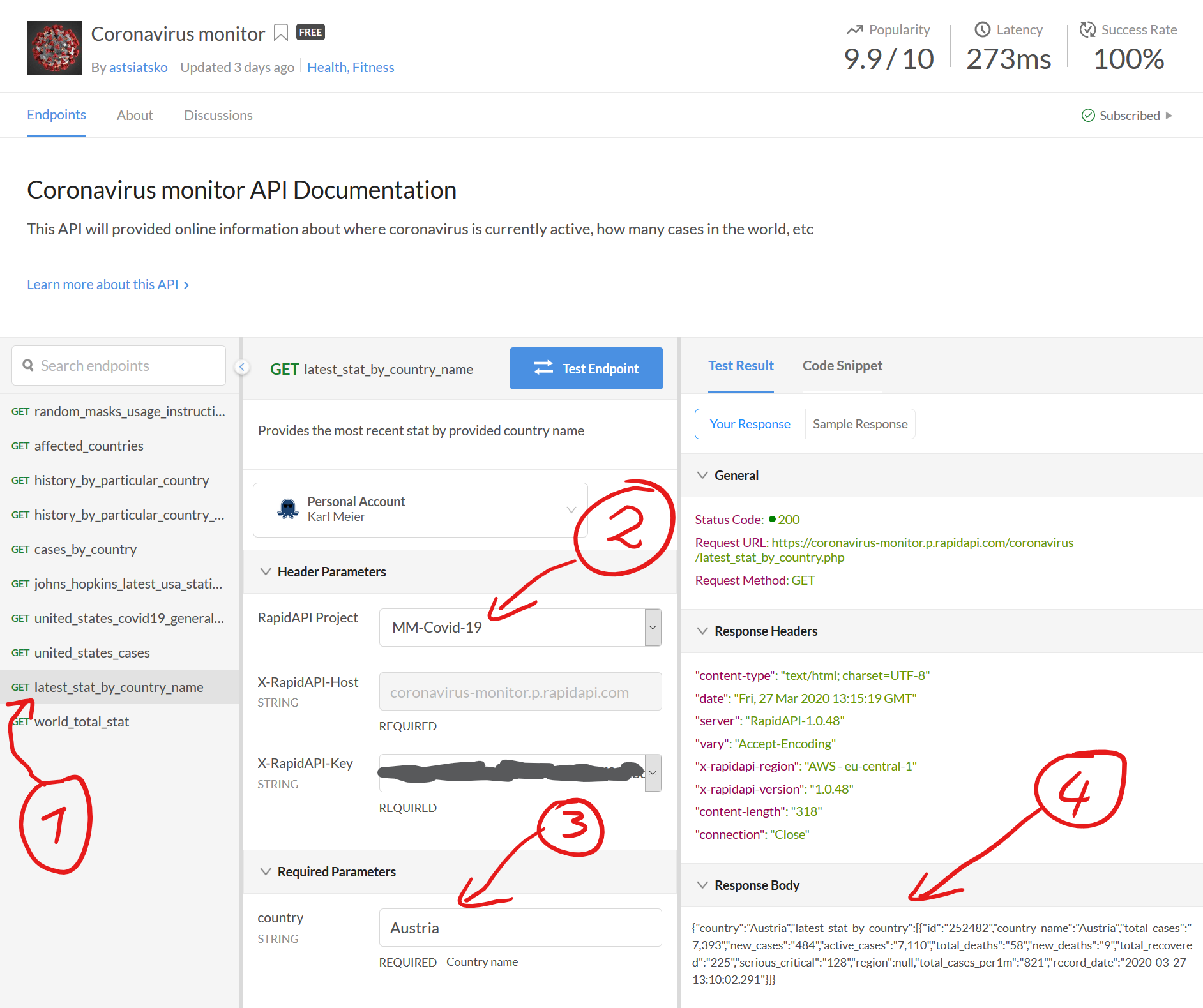
If you get a response in step 4, your API key is ready. Copy the API Key from your personal dashboard in the clipboard.
Step 2 – Test REST-API Connection from Powershell
$Country = 'Austria'
$headers=@{
    'x-rapidapi-host' = 'coronavirus-monitor.p.rapidapi.com'
    'x-rapidapi-key'  = 'YourKey-YourKey-YourKey-YourKey-YourKey-YourKey-Yo'
}
$Restparam = @{
    'uri' = "https://coronavirus-monitor.p.rapidapi.com/coronavirus/latest_stat_by_country.php?country=$Country"
    Method = 'Get'
    Headers = $Headers
}
$response = Invoke-RestMethod @restparam
If you have data in the $response variable, this worked.
Step 3 – Customize $profile
Find your profile by typing in $profile. Edit it with your favourite editor (VS-Code in my case) and add the following code to your profile. Please dont forget to change the x-rapidapi-key value to your RapidAPI key and the country of your choice.
$Country = 'Austria'
$headers=@{
    'x-rapidapi-host' = 'coronavirus-monitor.p.rapidapi.com'
    'x-rapidapi-key'  = 'YourKey-YourKey-YourKey-YourKey-YourKey-YourKey-Yo'
}
$Restparam = @{
    'uri' = "https://coronavirus-monitor.p.rapidapi.com/coronavirus/latest_stat_by_country.php?country=$Country"
    Method = 'Get'
    Headers = $Headers
}
$response = Invoke-RestMethod @restparam
$recorddate = Get-Date $response.latest_stat_by_country.record_date
Write-Host "COV-ID-19 Stats for $Country from $recordDate" -ForegroundColor Red
write-host "Active:$($response.latest_stat_by_country.active_cases)" -ForegroundColor Magenta -NoNewline
write-host "($($response.latest_stat_by_country.new_cases))  " -ForegroundColor Magenta -NoNewline
write-host "Fatal:$($response.latest_stat_by_country.total_deaths)" -ForegroundColor DarkGray -NoNewline
write-host "($($response.latest_stat_by_country.new_deaths))  " -ForegroundColor DarkGray -NoNewline
write-host "Recovered:$($response.latest_stat_by_country.total_recovered)" -ForegroundColor Green


function prompt
{
    $m = 30 # maximum prompt length
    $str = $pwd.Path
    if ($str.length -ge $m)
    {
        # The prompt will begin with "...",
        # end with ">", and in between contain
        # as many of the path characters as will fit,
        # reading from the end of the path.
        $str = "..." + $str.substring($str.length - $m + 4)
    }
    "C-"+"$str> "
}
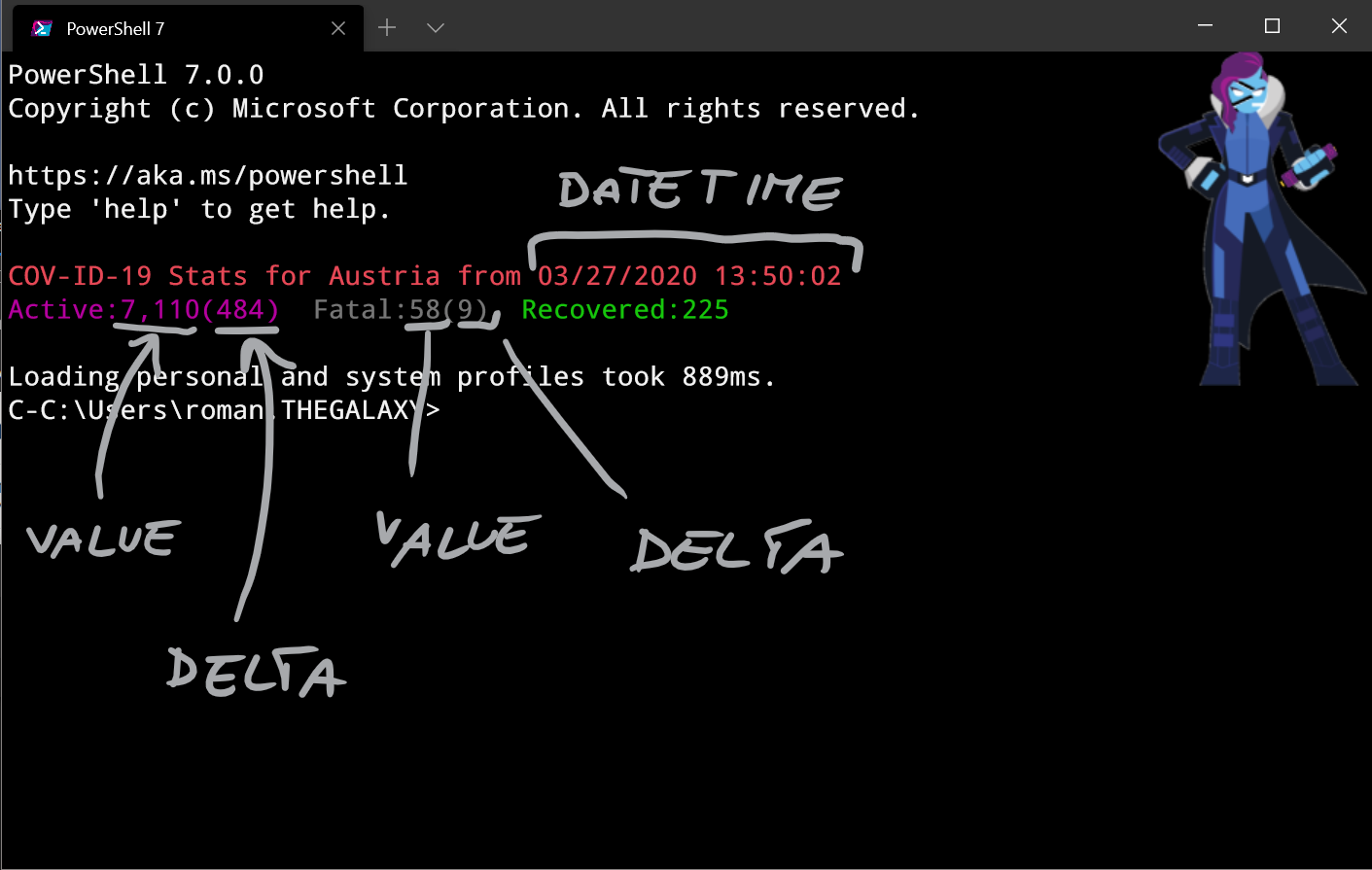
Next time you open a new Powershell prompt, something like the below should appear on your screen.
I hope you find this useful – Roman


Hello Roman,
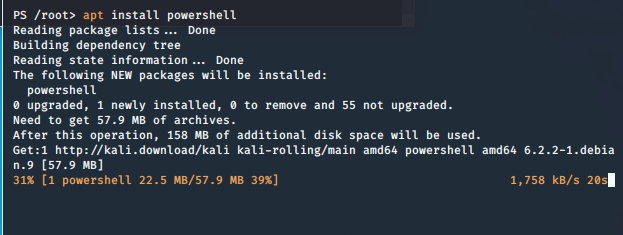
I came across your article by chance whilst browsing much of the COVID-19 information, much like everyone else is currently doing. I was however unable to sleep last night, so decided to practice a little PowerShell and feeling somewhat inspired, I produced the following:
https://github.com/BanterBoy/PSCovid19Stats
Hope you find a use for it or indeed anyone else reading your article.
#StaySafeStayHome
Kind regards
Luke
Hi Roman.
Thanks for the work. Exactly what I was looking for.
Regards
Reinhard